VetSpire
VetSpire myBalto Foundation Integration
Step 1 - Login
Login to your Portal
Go to Admin Setting
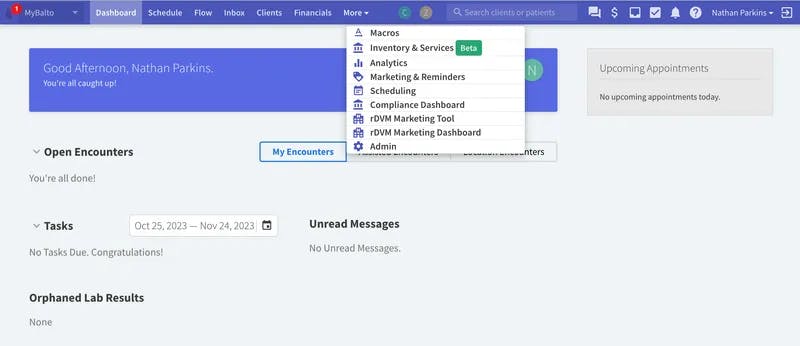
Step 2 - Navigate to Admin
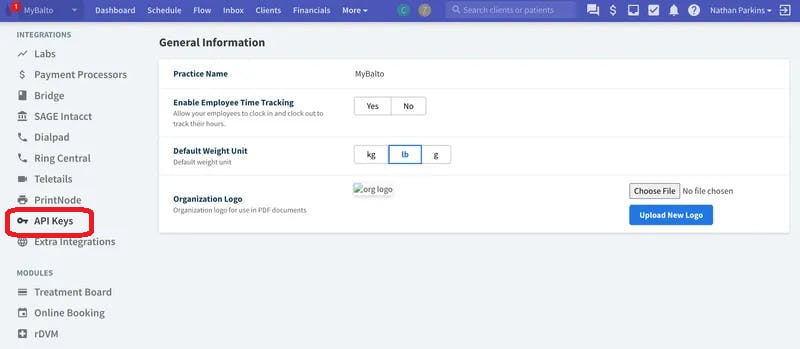
Scroll down on the left hand navigation bar and click on the "API Keys"
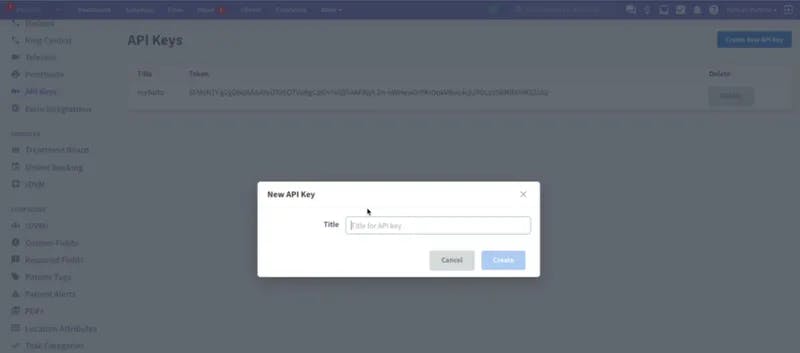
Step 3 - Create your API Keys
Create a new API Key
Give the new API Key a name and hit create
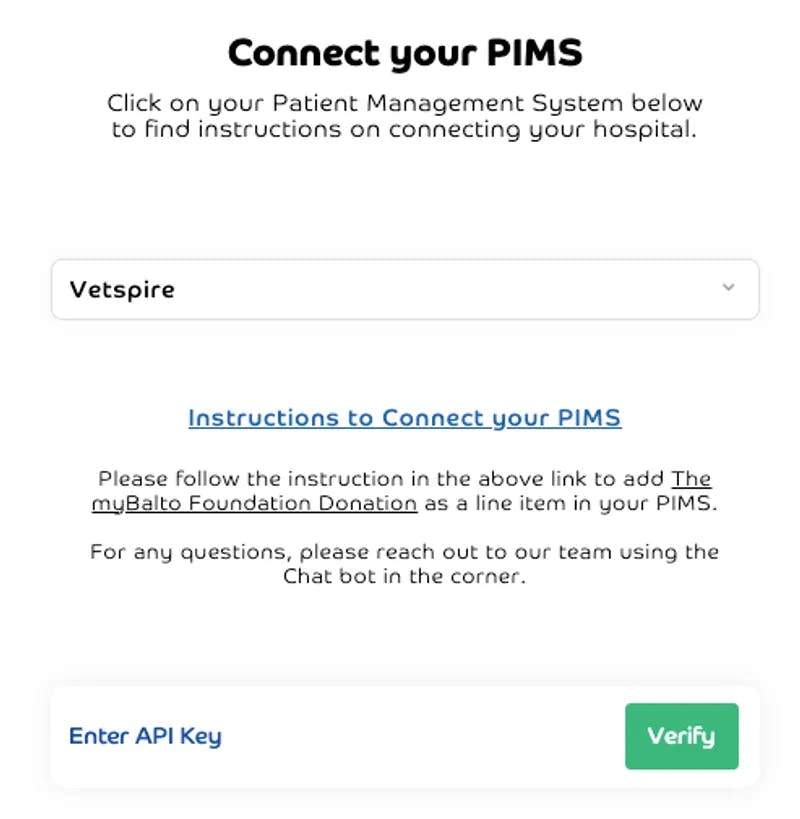
Step 4 - Connect Your Account to myBalto
Copy and paste the token that was generated
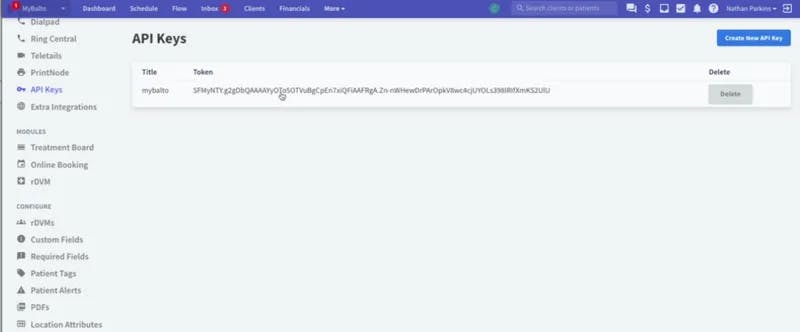
Paste the token into the myBalto platform where it says API Key
Step 5 - Add myBalto Foundation Product
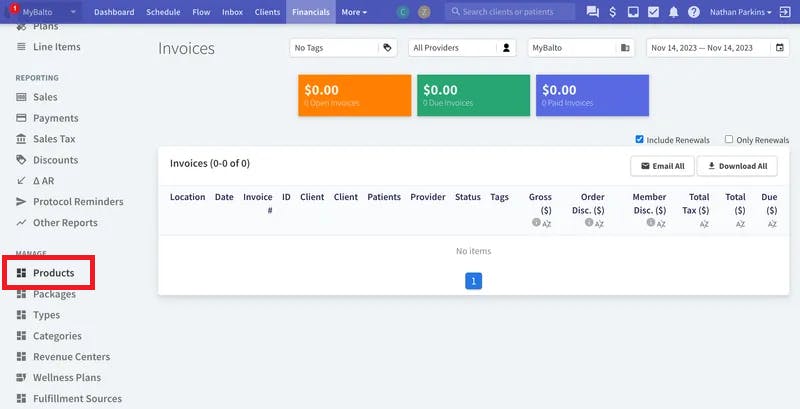
Click on the Financials tab and click on Products under the "manage" heading
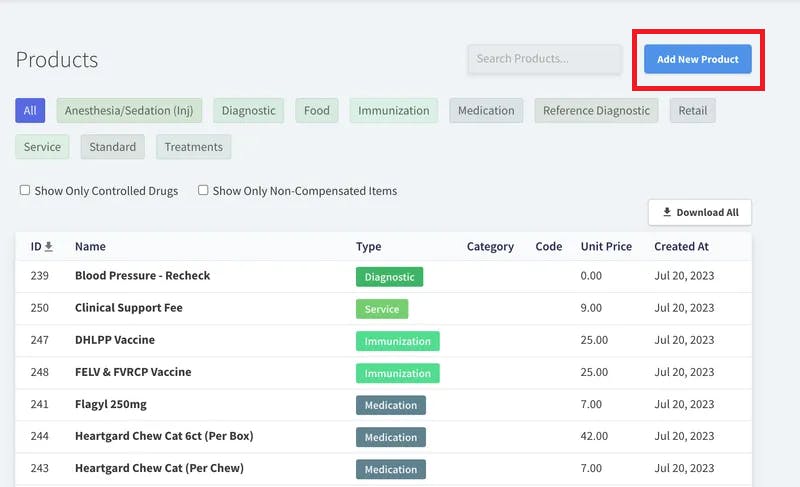
Next, click on "Add New Product" in the top right corner
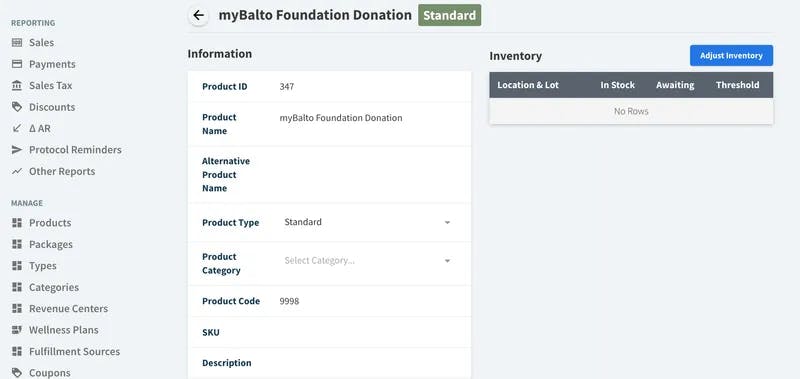
Step 6 - Product Creation
Please make sure to copy and paste the below to help avoid any errors.
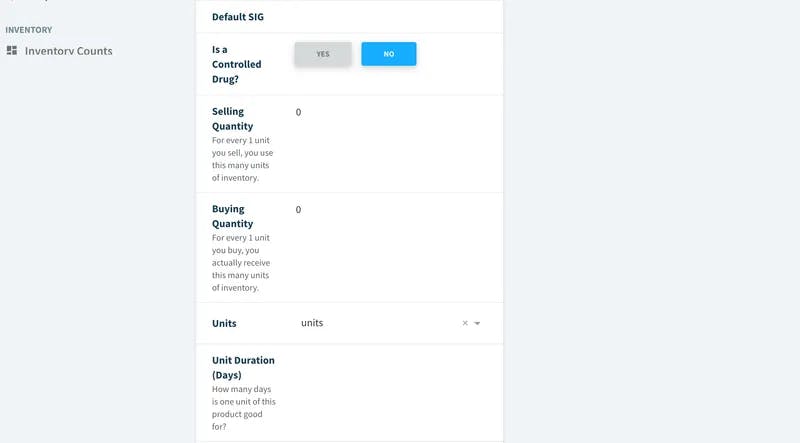
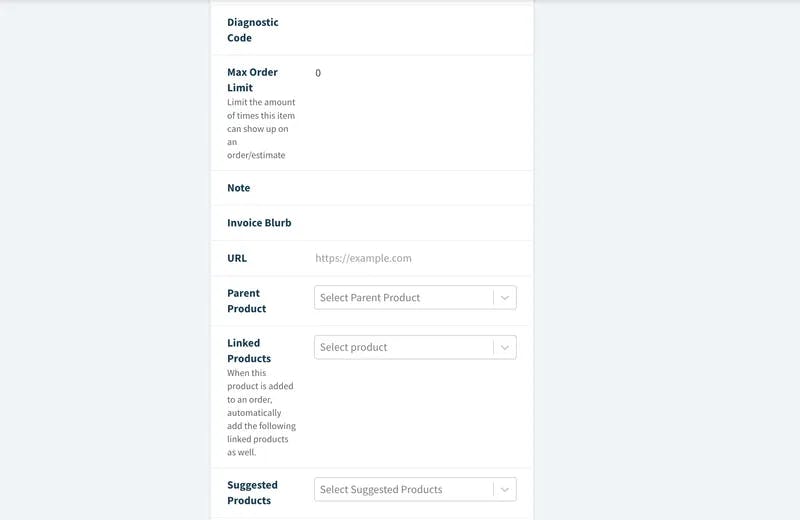
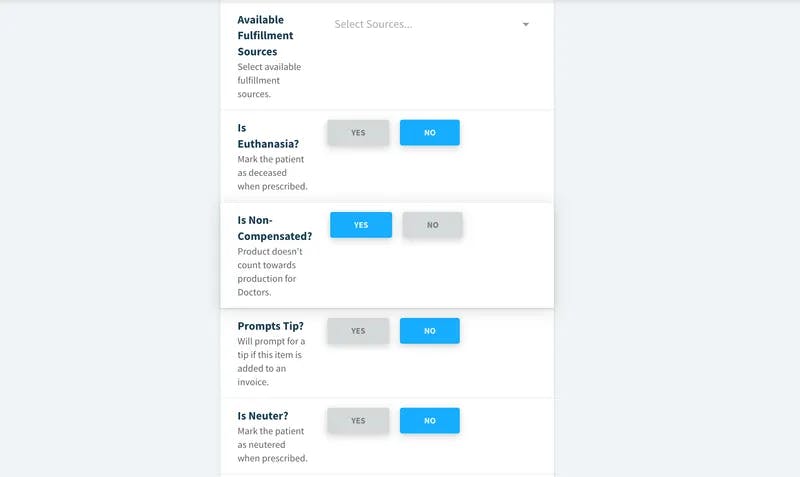
Below are the Key Fields:
Product Name => myBalto Foundation Donation
Product Type => Standard
Product Code => We recommend using 9999
Selling Quantity => 0
Buying Quantity => 0
Is Non-Compensated => Yes
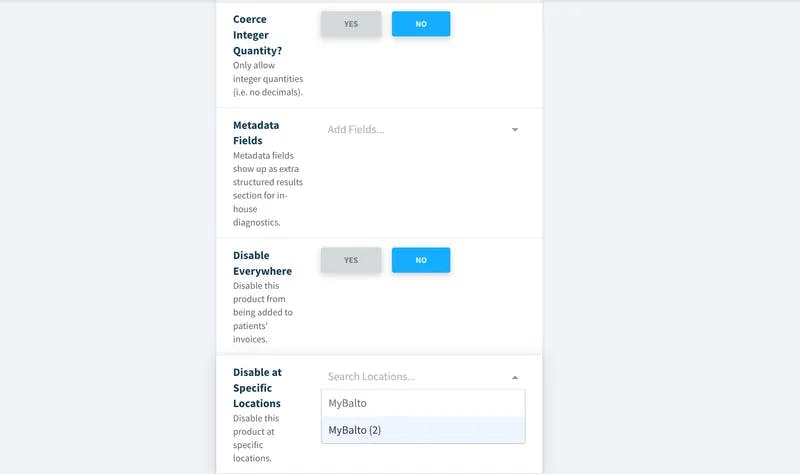
Multiple locations => feel free to disable any locations that you want to exclude.
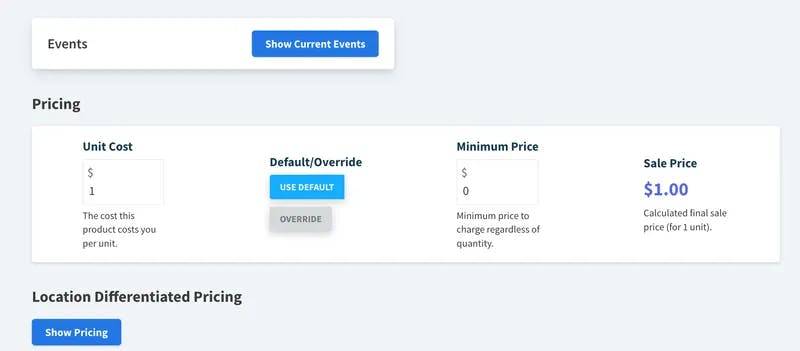
Pricing:
Unit Cost => $1
Minimum Price => $0
Step 7 - Confirm Product Setup
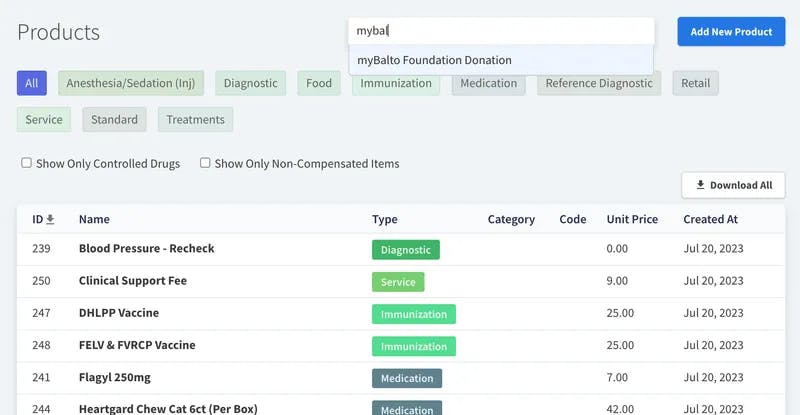
Confirm that the new product is displayed in your product list
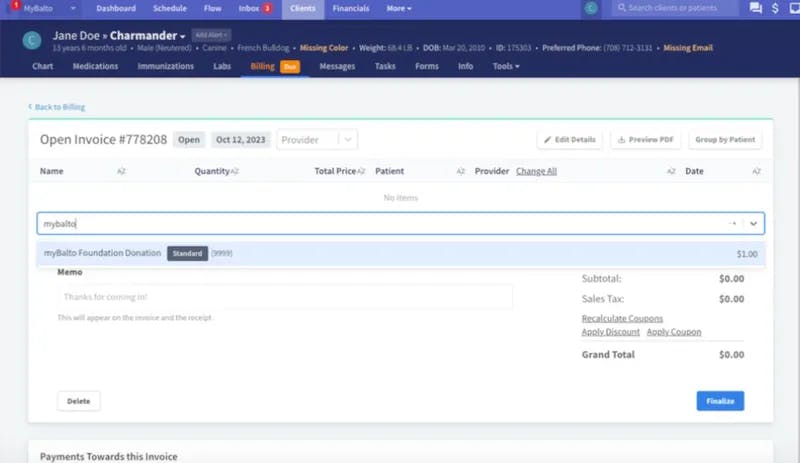
Create an Invoice with myBalto Product
When you create a new invoice you should be able to type in either the product name "myBalto Foundation Donation" or the product code that you set above, and the product should appear to be used.