
Impromed
In this article group
Create Your Line Item
Step 1:
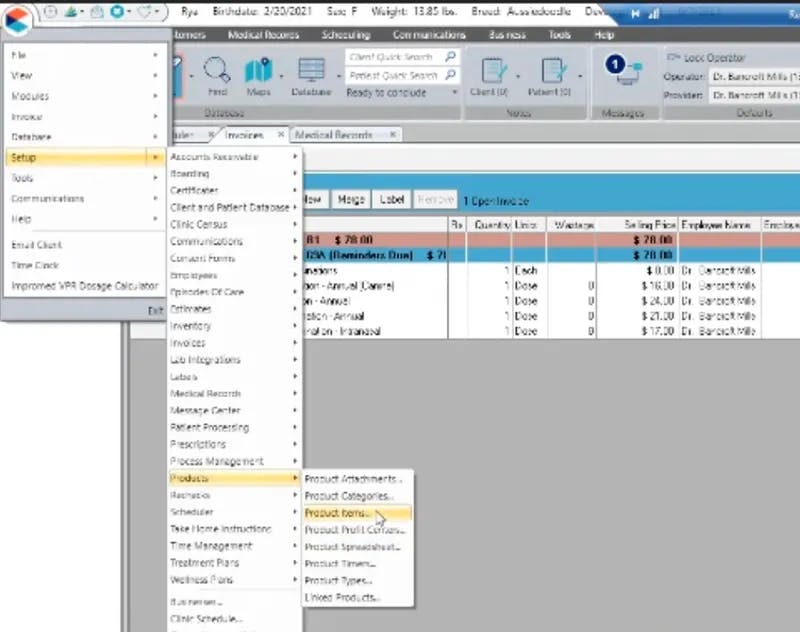
On any page, click the Covetrus logo --> Setup --> Products --> Product Items.
Step 2:
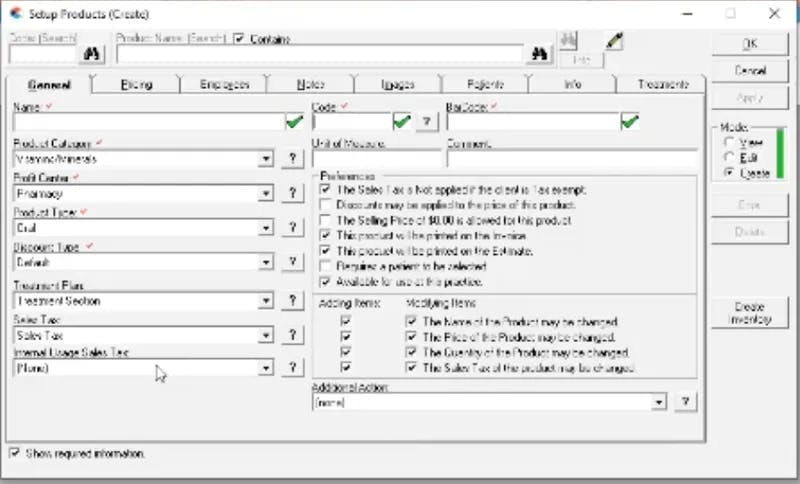
This will open a Window labeled "Setup Products (Create)" :
Go to the "General" tab. Enter the following information:
Name: myBalto Foundation Donation
Code: 9999
Sales Tax: None (because it is a donation)
Step 3:
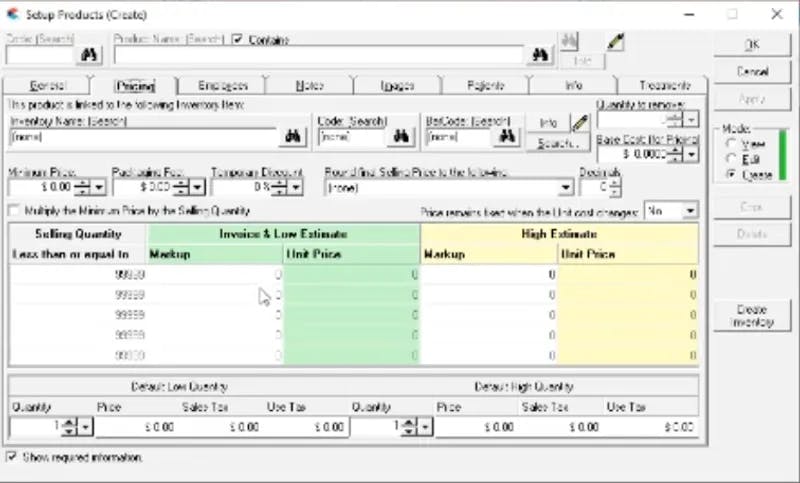
Go to the Pricing Tab. Enter the Base Cost as $1.00. No other changes are needed.
Step 4:
Click "OK".
You have now successfully added the myBalto Foundation Donation to your PIMS! Head back over to the myBalto Foundation platform to verify your product.
***Please note that it may take until the next day for our system to be able to verify the product has been added. If for some reason you have added your product, and you are still not seeing donations coming through, then: Verify the product name in your system matches "myBalto Foundation Donation" exactly, no extra spaces at the end. Verify you've added the product in the myBalto platform in your settings. Reach out to our team via email or by chat and we will gladly work with you to get it working!
Add myBalto Foundation as a Payment Type
Step 1:
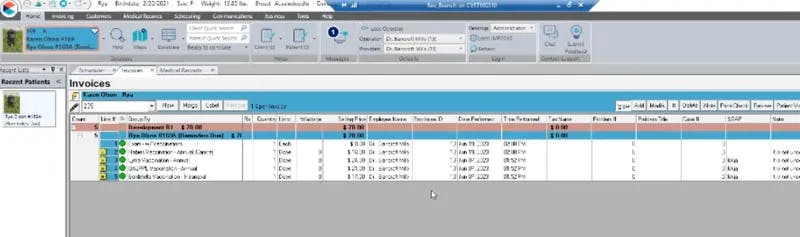
Go to your patient's "Invoice" tab and select "Add" button on the right side of your screen.
Step 2:
Search for the "myBalto Foundation Donation" line item and select it.
Step 3:
Based on the client's selection of a $1, $3, or $5 donation, adjust the "Quantity" of the myBalto Foundation Donation to 1, 3, or 5, respectively (or if doing exact round-up, 1.33 for $1.33 donation).