ezyVet
How to Connect Your Hospital's ezyVet Account to myBalto:
Get ezyVet Partner API Credentials-
The following outlines the steps required to get your ezyVet Partner API credentials.
Step 1:
Log into ezyVet with relevant admin privileges
Step 2:
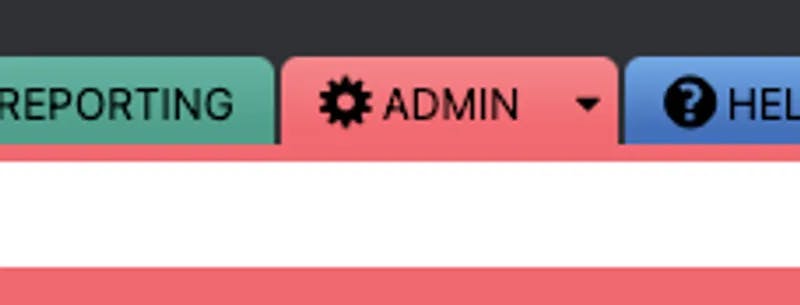
Click on the ‘Admin’ tab
Step 3:
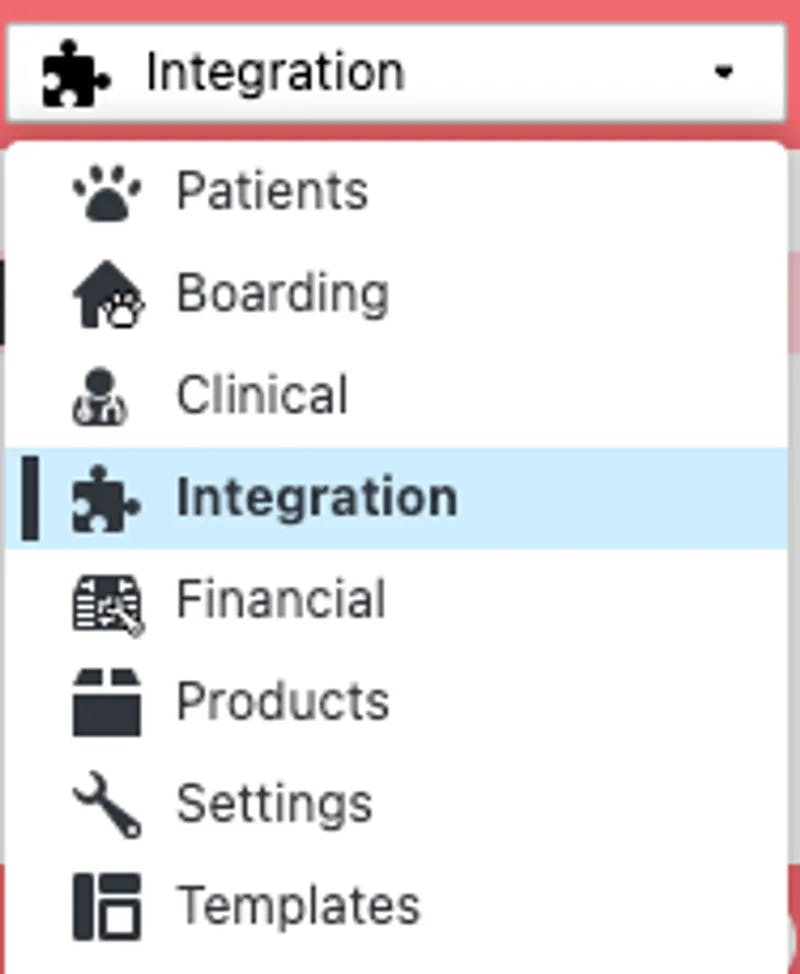
Use the drop-down box on the left of the screen and select Integration
Step 4:
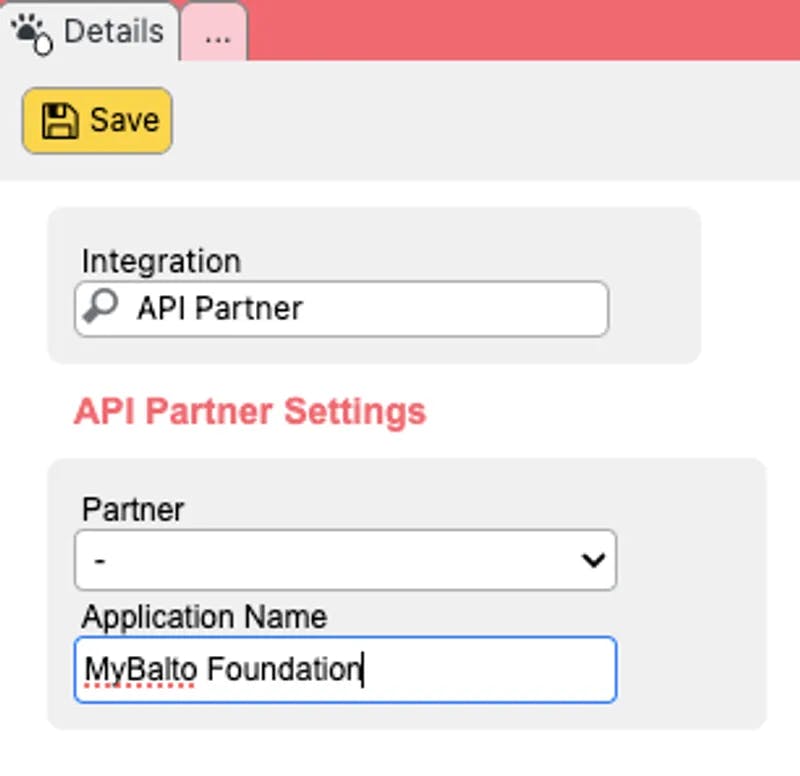
In the Integration Search Box type and select “API Partner”
Step 5:
Select MyBalto Foundation from the Partner drop down box and then click ‘Save’
Step 6:
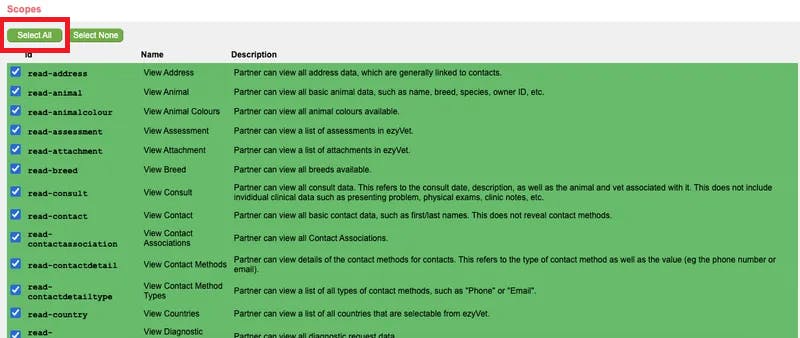
Underneath ‘Scopes’ click ‘Select All’ and then Click ‘Save’
Step 7:
Click ‘Download Credentials’. Your browser will then download a file named credentialsapi.txt.

Upload Credentials to the myBalto Foundation Platform
The following section details how to upload your ezyVet API credentials to the myBalto Foundation Platform.
Step 8:
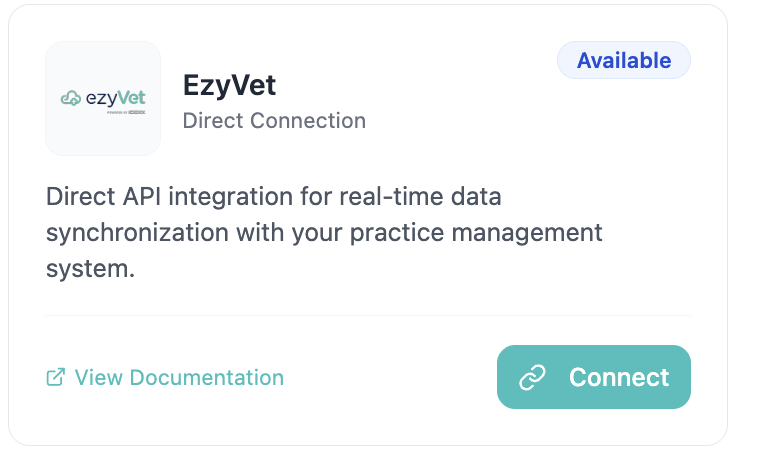
During onboarding, find the ezyVet Integration box within the "Vet Management Software Tab" in your Settings.
Click "Connect".Step 9:
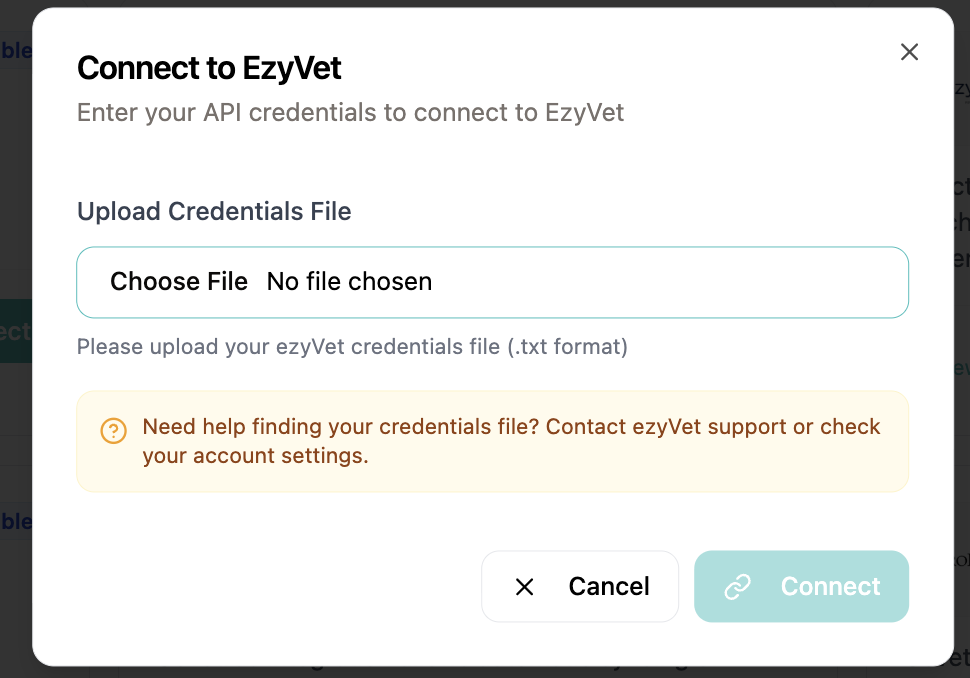
In the myBalto Platform, upload your credentials (.txt file) and click "Connect"
Step 10: Your ezyVet Account is now connected!
Add Donation Line Item to ezyVet
In order to add a Donation Line Item to your ezyVet instance, please follow the below instructions.
Step 1:
In order to add the donation line item to your ezyVet instance please follow the below instructions.
Step 2:
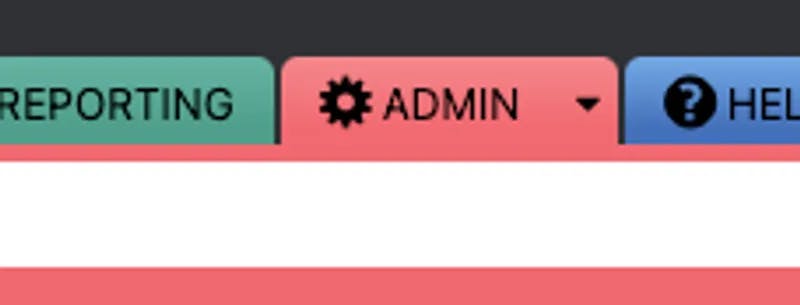
Click on the ‘Admin’ tab
Step 3:
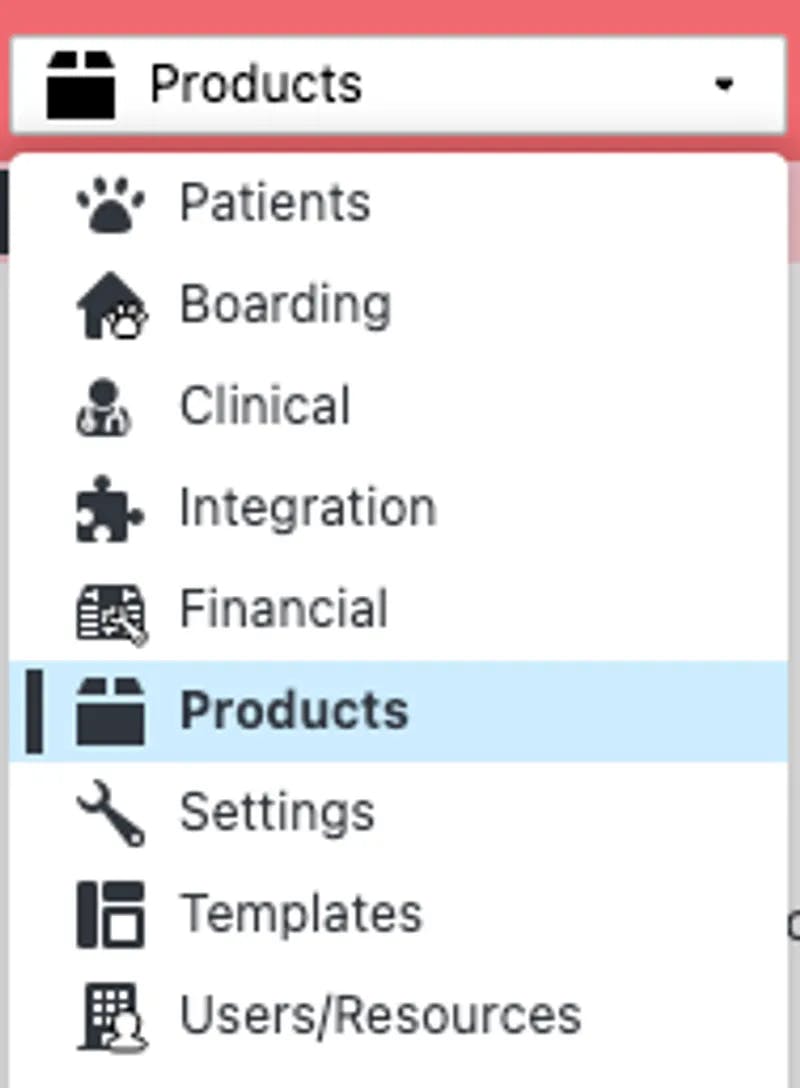
Use the drop-down box on the left of the screen and select Products
Step 4:
Click "New Product" in the upper left hand corner.
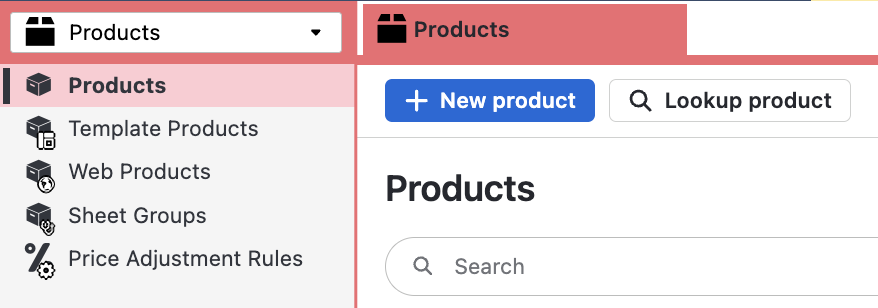
Then choose "Service Fee" and the following page should pop-up.
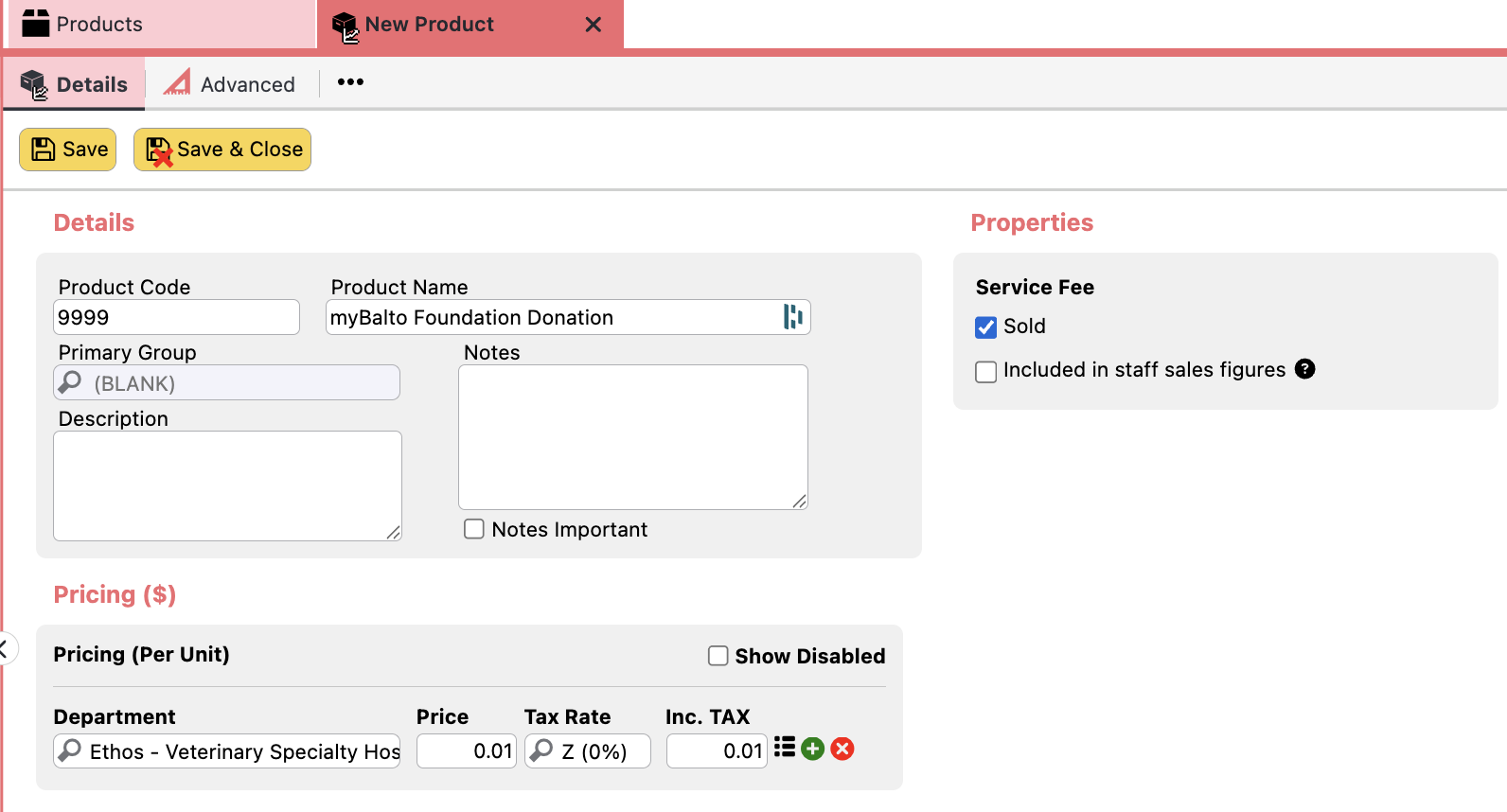
Product code => any code number you like
Product Name => Two options:
- If you know the name of your fund (i.e. Fluffy's Fund), enter it here
- If you don't want to personalize your fund name: "myBalto Foundation Donation"
**You will need the name of your fund for the next step, so remember it!Primary Group => Service Fee (or something similar if not available)
Properties:
Included in Staff Sales Figures => No
Is Sold => Yes
Pricing ($)
Department => make sure it's available for your entire organization / locations.
Price => $0.01
Tax Rate => E (exempt) 0%
Inc. Tax => Calculation should equal $0.01
Step 5:
Once you have added the above information, click on "Save"
Step 6:
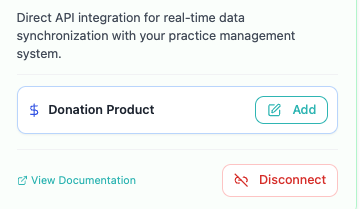
Go back to the myBalto Foundation platform tab, find the ezyVet Integration box, and click, "Add".
Step 7:
Enter the exact name of your donation line item name in the "Product Name" text field. If a red box pops up saying that it is unable to find your line item, you may need to wait 24 hours as our integration updates every evening.
Once your line item shows up, select it and choose "Save". Ignore the ID number shown as it will not be the same number you entered as a Product ID earlier.
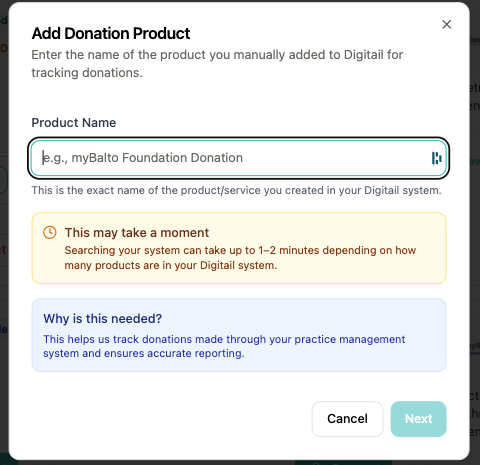
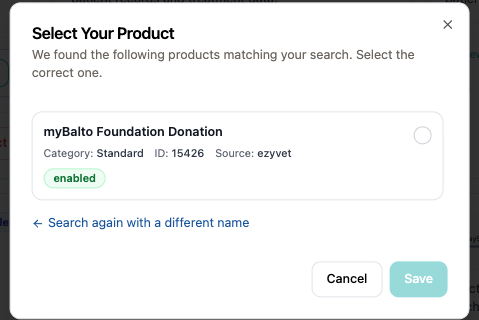
Step 8: Line item integration complete!
Create a myBalto Foundation Payment Type
Step 1: Go to your Admin Tab
Select Financial from the drop down
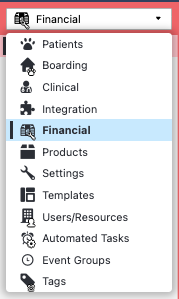
Step 2: Click Payment Methods
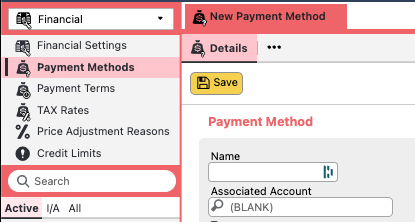
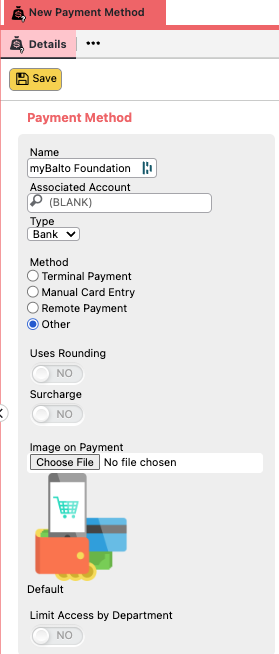
Step 3: Fill out the Following Information
Name --> myBalto Foundation
Associated Account --> Not needed
Type --> Bank
Method --> Other
Uses Rounding/Surcharge: No
Image --> Not necessary
Step 4: Integration Complete
Disabling the Integration in ezyVet
If you no longer wish to use the integration, it can be disabled by following the below instructions.
Step 1:
Log into ezyVet with relevant admin privileges
Step 2:
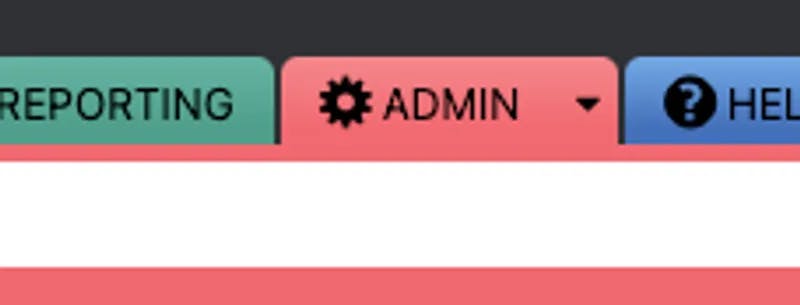
Click on the ‘Admin’ tab
Step 3:
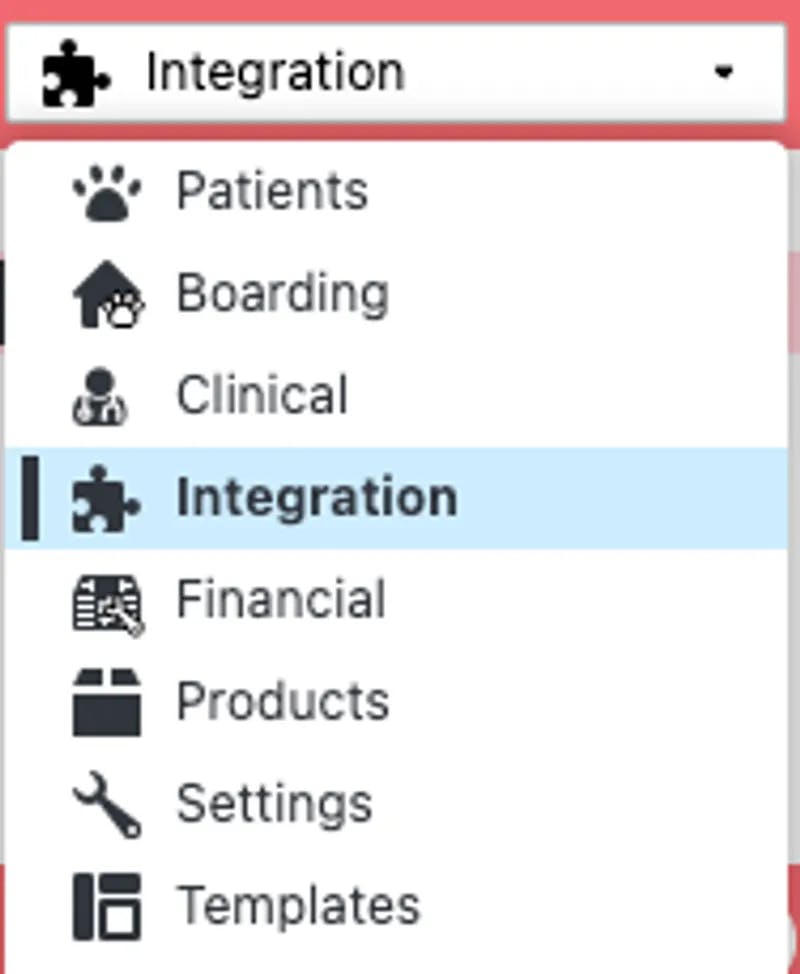
Use the drop-down box on the left of the screen and select Integration
Step 4:
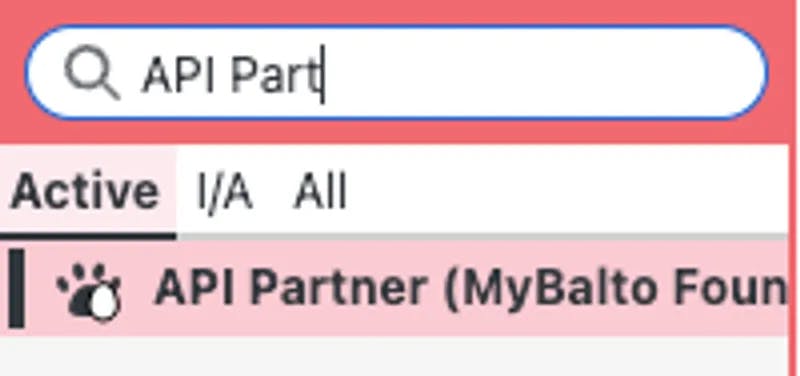
Use the search bar on the left-hand side of the screen to search for the integration
Step 5:
Select the integration and look on the right-hand side of the screen for the DISABLE button
Step 6:
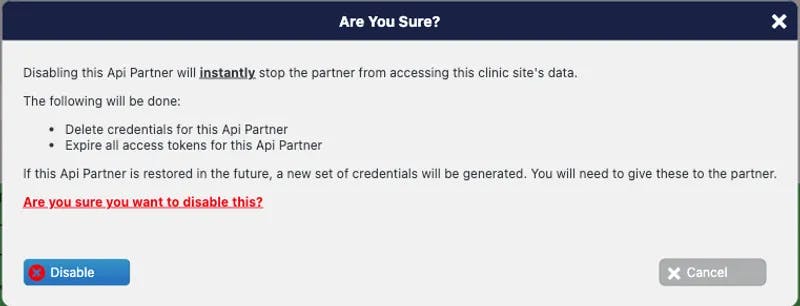
Select DISABLE
Step 7:
A Pop-up will appear where you can confirm the disable by selecting DISABLE again