Digitail
In this article group
Connect Your Digitail Account
Step 1: Find the Digitail Integration Box within the Settings --> Veterinary Mgmt Software
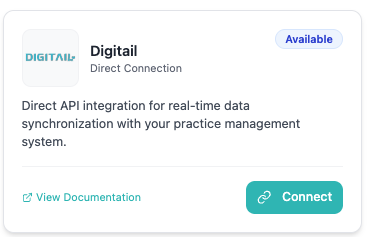
Step 2: Click Connect and Connect again. It will take you to a single sign on screen for your Digitail account which will automatically complete the process once you login.
That's it! Move to the next step!
Create Your Line Item
Step 1: Log into your account
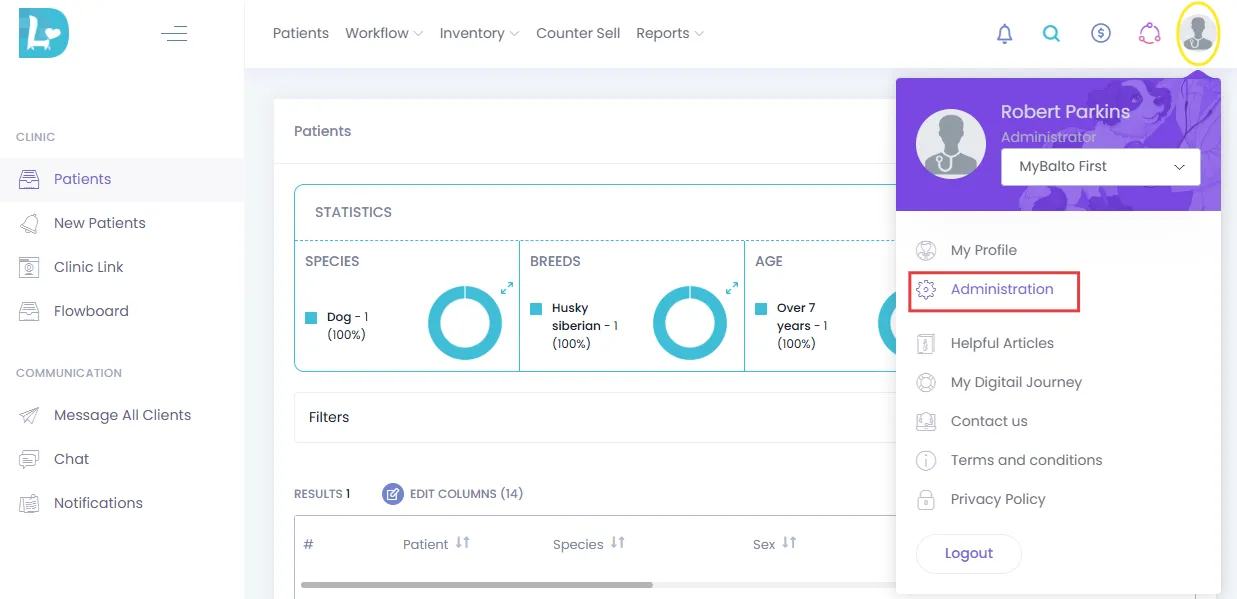
Step 2: Click on the "person icon" in the upper right hand corner then click "administration".
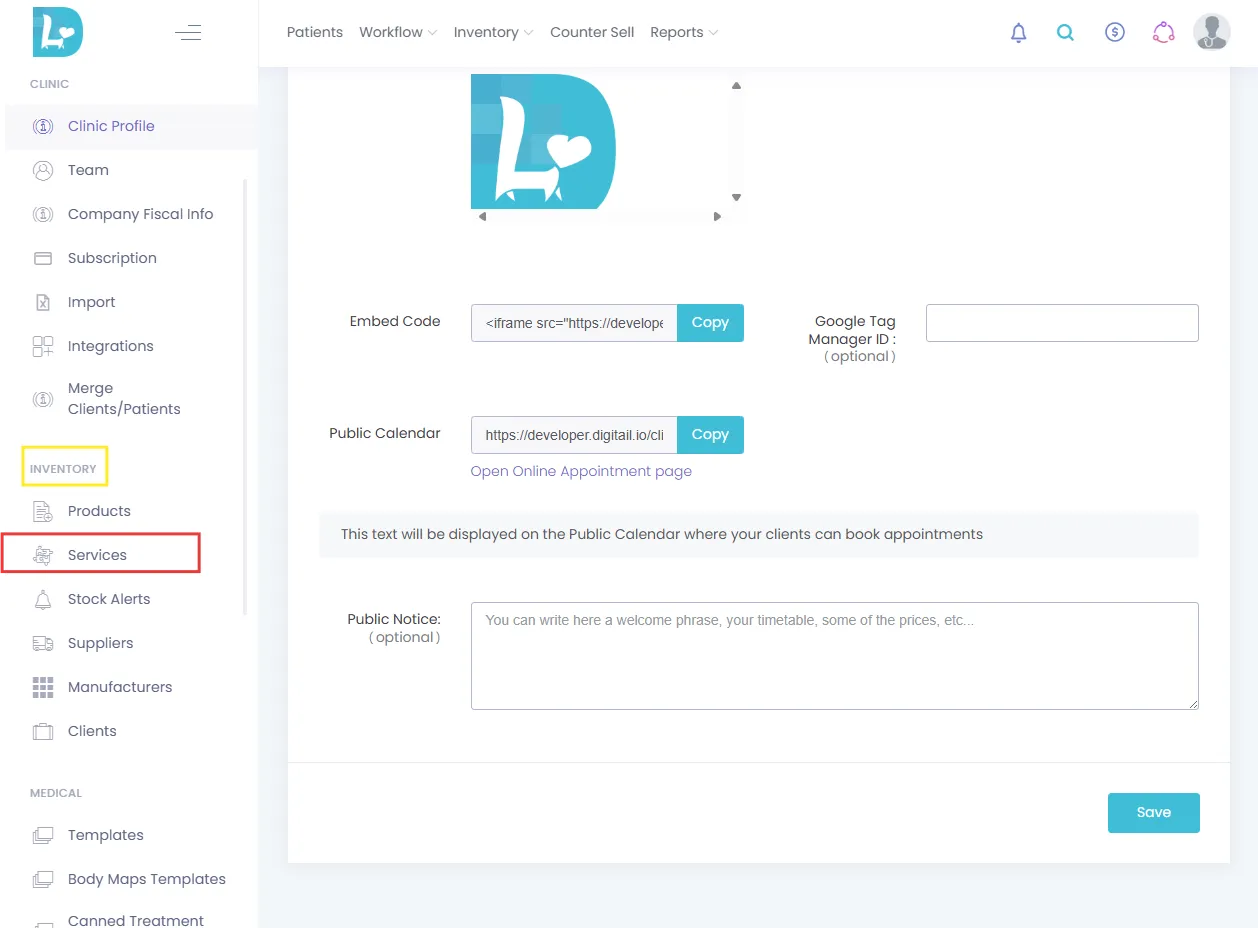
Step 3: You will scroll down on the left hand column until you see "Inventory" and click on "Services".
Step 4: Click on "Add Service"
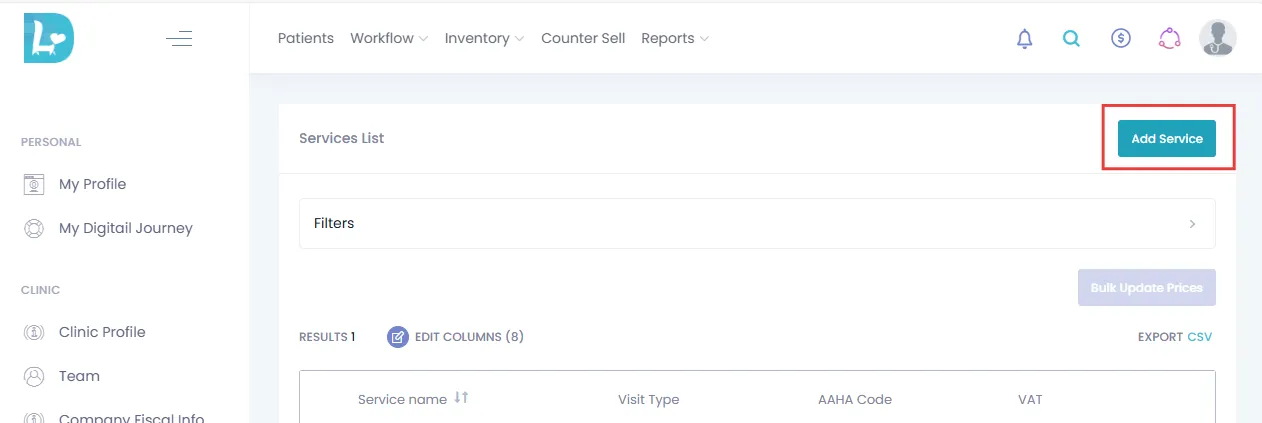
Step 5: Enter the information as it appears in the image below
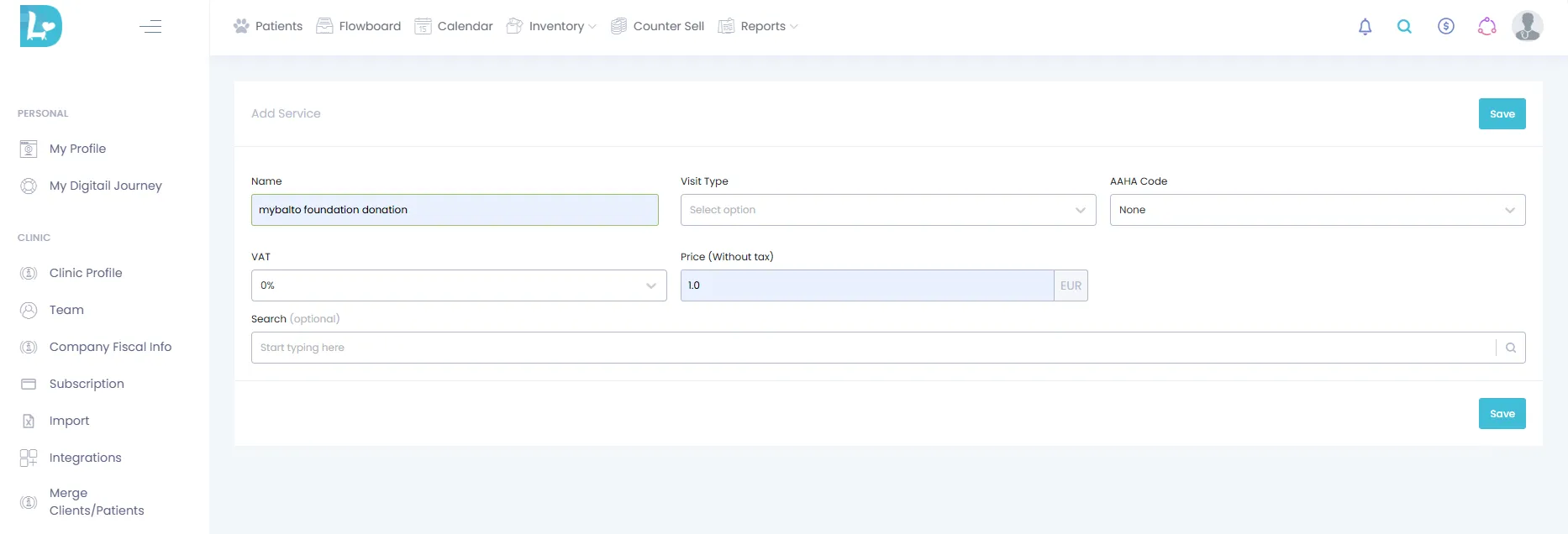
IMPORTANT- You do not have to call it the myBalto Foundation Donation in your PIMS. If you would like to call it, "Fluffy's Fund" or something similar. Remember the name though as this will be important in the later steps!
Step 6: Click SAVE
Step 7: You have now successfully added the myBalto Foundation Donation (or your chosen donation name) to your PIMS! But now we need to track it!
Step 7: Track Donation Line Item
Head back over to the myBalto Foundation Dashboard --> Settings --> Veterinary Mgmt System --> Find the "Digitail" Integration Box and click "Add".
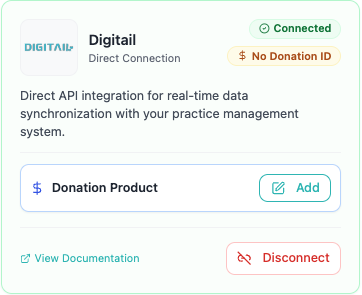
Please enter the exact same line item name and click "Next". If you can't find your line item right away, please note that it may take until the next day for our system to be able to find your donation line item.
Step 8: That's it! We are now tracking your line item and you can start taking donations at check out.
If for some reason you have added your product, and you are still not seeing donations coming through on your myBalto Dashboard, then:
Verify the product name in your system matches the one you created exactly, no extra spaces at the end.
Verify you've added the product in the myBalto platform in your settings.
Reach out to our team via email or by chat and we will gladly work with you to get it working!
Example of Adding Line Item to InvoiceStep
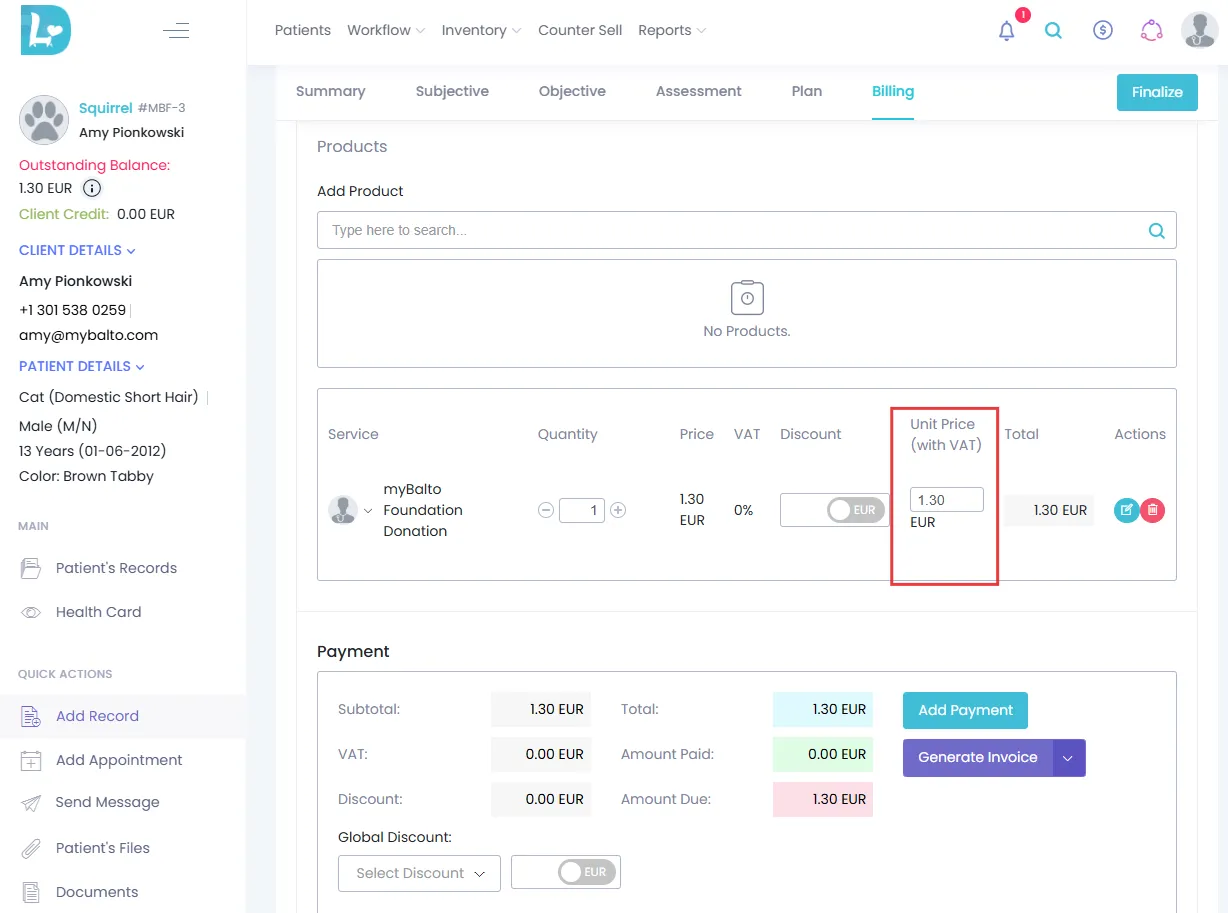
Step 1: Proceed to Billing, scroll to "Add Services and Products" -> select "Services" and type in myBalto Foundation Donation (or your donation line item name)
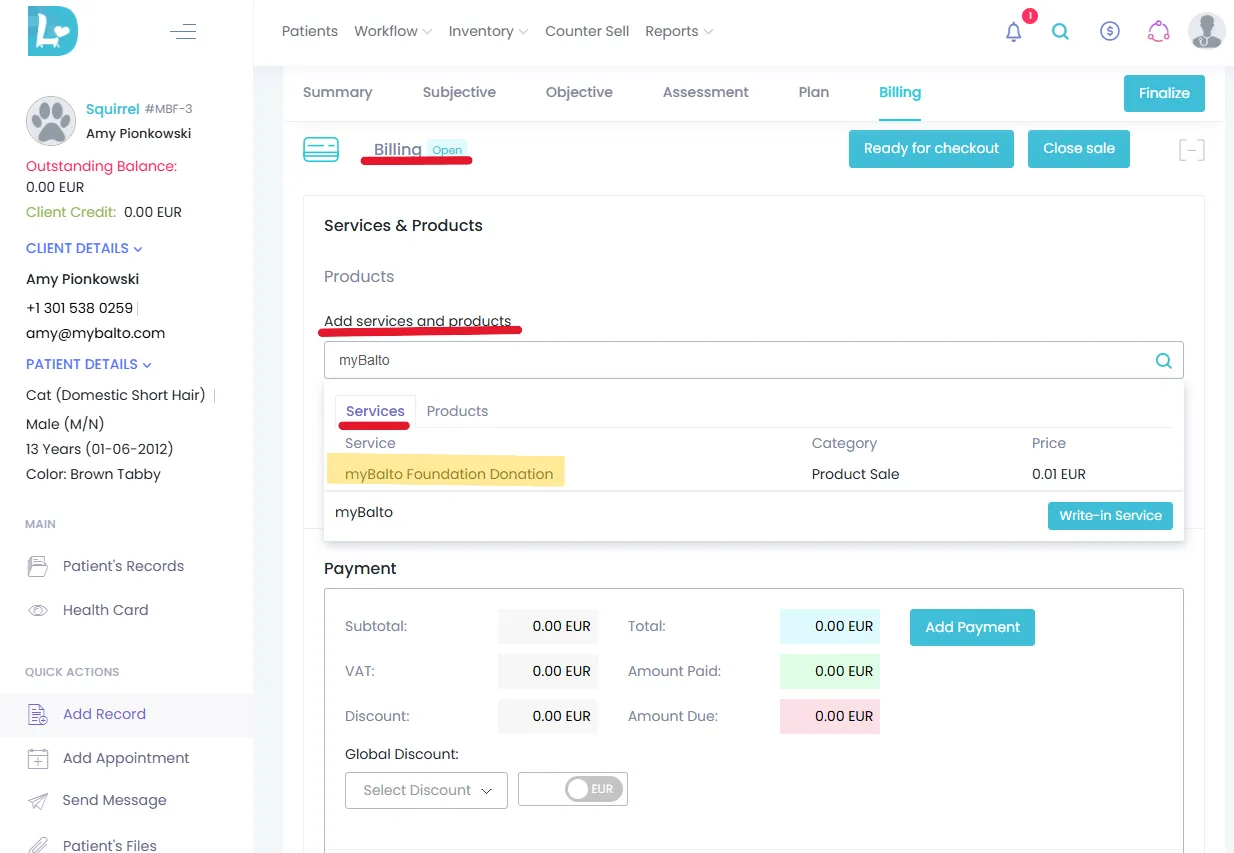
Step 2: Change the "Unit Price" to the donation amount that the customer would like to give and check out per usual.