
Cornerstone
In this article group
Create Your Line Item
Step 1:
From your hospital's home page in Cornerstone, select "Lists"--> Invoice Item from the toolbar at the top. When the new window opens, select "New" and another window will open.
Step 2:
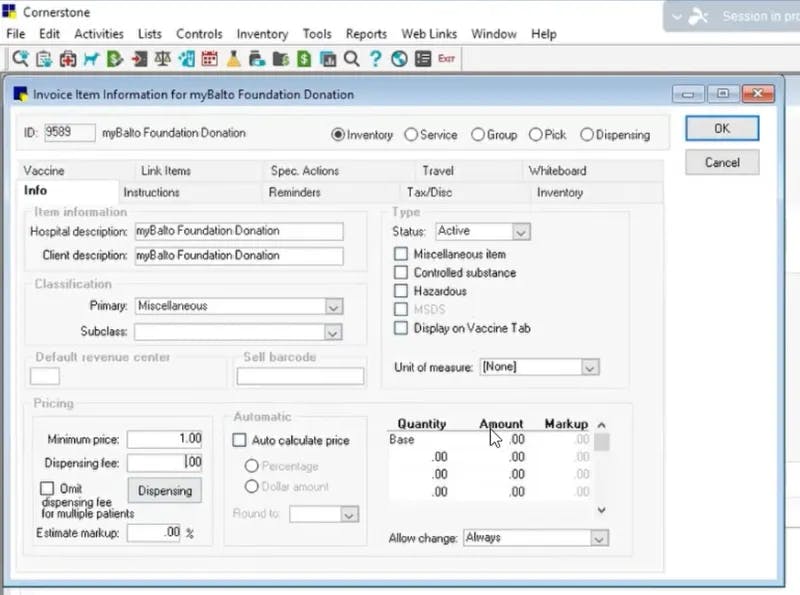
At this window, change the "ID" number at the upper left to "9999". Then enter the following information into the "Info" tab:
Hospital Description: myBalto Foundation Donation
Client Description: myBalto Foundation Donation
Primary: Miscellaneous
Minimum price: 1.00
Dispensing Fee: 0
Estimate mark-up: 0
Status: Active
Miscellaneous Item: Check this box
Step 3:
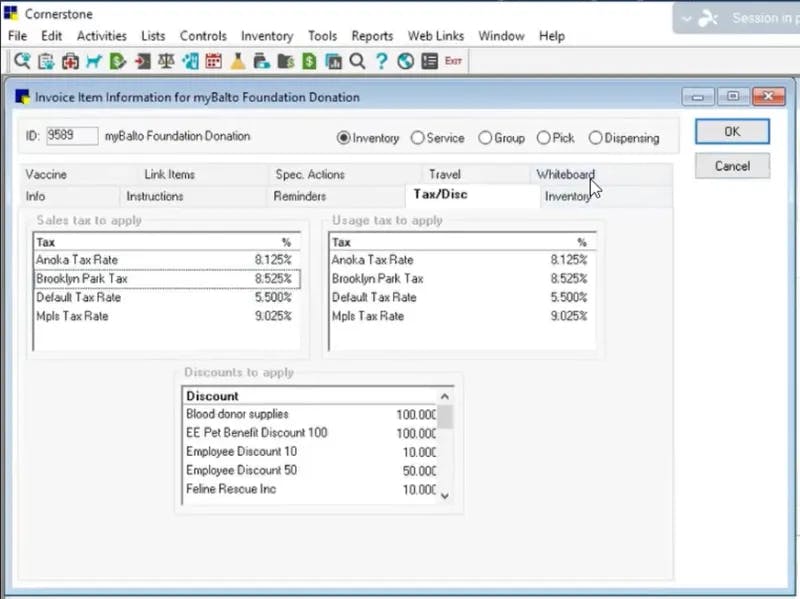
In the "Tax/Disc" tab, please de-select any taxes in either column as a donation is not a taxable item.
Step 4:
BEFORE YOU CLICK "OK", click the "Service" bubble located at the top of the window. Once this is selected, you can click "OK".

You have now successfully added the myBalto Foundation Donation to your PIMS! Head back over to the myBalto Foundation platform to verify your product.
Please note that it may take until the next day for our system to be able to verify the product has been added.
If for some reason you have added your product, and you are still not seeing donations coming through, then:
Verify the product name in your system matches "myBalto Foundation Donation" exactly, no extra spaces at the end.
Verify you've added the product in the myBalto platform in your settings.
Reach out to our team via email or by chat and we will gladly work with you to get it working!
Add myBalto Foundation as a Payment Type
Step 1:
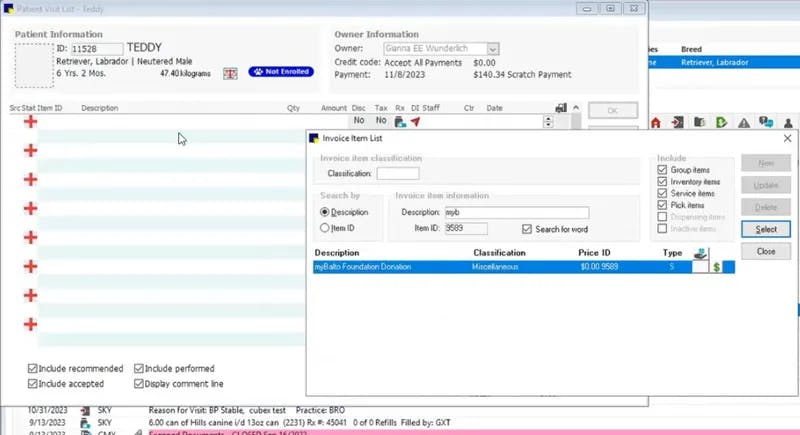
Go to your "Patient Visit List" or Invoice for the owner that wishes to round-up. Add an item.
Step 2:
As the "Invoice Item List" window opens, search for myBalto and select it.
Step 3:
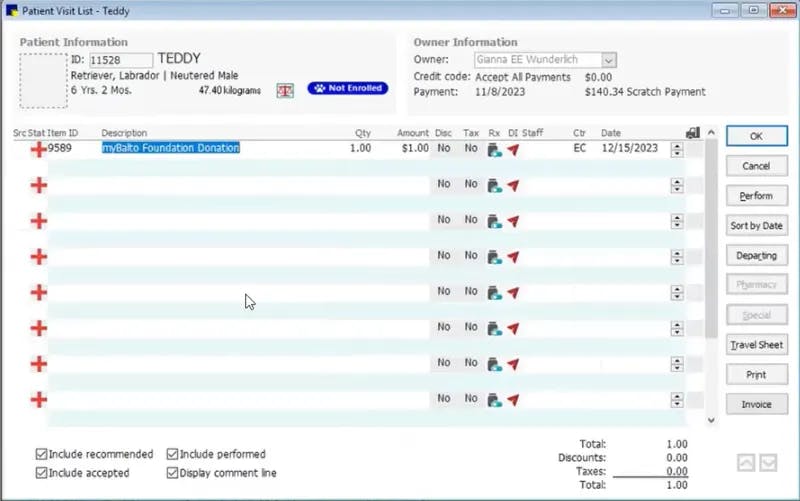
Based on the client's selection of a $1, $3, or $5 donation, adjust the "AMOUNT" of the myBalto Foundation Donation to $1, $3, or $5, respectively (or if doing exact round-up, $1.33 for $1.33 donation). Quantity remains one.
Step 4:
Click "OK" and the donation is officially added to the invoice!
How to Connect your PIMS
How to Create a Line item
How to Create a Payment Type
Miscellaneous